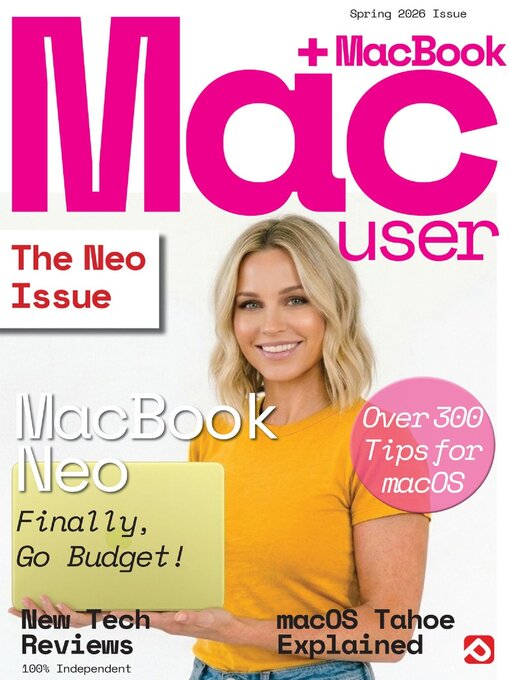
 Mar 01 2026
 Autumn 2025
 Vol 9 2024
 Vol 8 2023
 Vol 7 2023
 Vol 6 2023
 Vol 5 2023
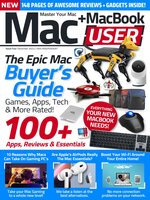 Vol 4 2022
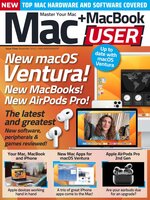 Vol 3 2022
 Vol 2 2022
Mac & MacBook User takes high quality content from expert design and editorial teams to deliver to you the ultimate Apple Mac and MacBook magazine. BDM’s Mac & MacBook User Magazine brings you the very best software, app and hardware reviews coupled with technical help for your macOS powered Mac and MacBook. This is the publication you will need to keep you ahead of the pack when it comes to the inside must know Apple’s software and hardware info and technical help. If you use a Mac or MacBook you need to click subscribe! 100% unofficial.
Welcome…
Time for a Budget MacBook? • The biggest issue that has hindered the mainstream success of the far superior Apple MacBook in the face of the Google’s Chromebooks and a wealth of Windows powered notebooks is price. Actually make that was price, the game has changed with the release of the wallet friendly MacBook Neo.
First Steps with Your MacBook Neo • This section isn’t just for newcomers. Even if you’ve been using your Mac notebook for a while, there might well be something here you didn’t already know. We take you through the MacBook Neo’s basics, such as trackpad gestures, the Dock, how to personalise your MacBook and more. There are also guides to setting it up for the first time, and upgrading the operating system to macOS 26 Tahoe.
Set Up a MacBook For the First Time • If you have a new MacBook but have not yet set it up, follow this guide. It’s nothing to be afraid of; follow the guide and the on-screen instructions, and step by step, you get to set your Mac’s language, take it onto the Internet with your Wi-Fi network, sign in with your allimportant Apple ID and more.
Reset to Factory Conditions
Update macOS To macOS 26 Tahoe • If your Mac is already set up but is running an older version of the operating system, you’re probably keen to upgrade to the latest release of macOS Tahoe. It’s completely free of charge, and as long as your Mac meets the minimum system requirements, it’s easy to do. You need an Internet connection, and it’s best to plug in your charger too.
Using Touch ID On Your MacBook • With Touch ID, you can unlock your MacBook, make purchases, enter login details and switch between users, all using your fingerprint.
Launching and Quitting Apps • There are several ways of launching an app on your MacBook. Here we show you how to launch software applications, and also quit them.
Welcome to the Tahoe Desktop • The desktop is at the heart of your MacBook. Everything you do takes place on the desktop, including opening apps, interacting with files and folders and using the Dock. Here we show you how to use your desktop, app and folder windows, the top bar menu, Bin and more.
Personalise Your MacBook • macOS 26 Tahoe gives you all sorts of ways of customising and personalising your Mac. You can change your desktop wallpaper to an image or pattern of your choosing, set up a screensaver, configure the menu bar, give the Mac’s folders their own individual colours and more.
Control Centre
Gesture Controls On Your Trackpad • You can navigate your MacBook using gesture controls, just like you do on your iPhone or iPad. These gesture controls can be performed on a Mac notebook’s trackpad or on the Apple Magic Trackpad, which is available for desktop Macs. You can even do a few of them on a Magic Mouse.
Desktop Widgets For Easy Access • If you click on the Mac’s time in the top-right corner of the screen, you get a sidebar showing notifications and Widgets. You can also place Widgets on the desktop, where they fade into the background until needed. They’re unobtrusive, easy to use and packed with information. Here’s how they work.
Widgets in the Sidebar
Dark Mode And Night Shift • If your screen’s too bright, there’s a couple of great desktop features that help. Dark Mode...